How to Set Up IPTV on Firestick
A walkthrough of installing and configuring an IPTV app on Amazon Fire TV Stick, including common remote-navigation gotchas.
Before you start
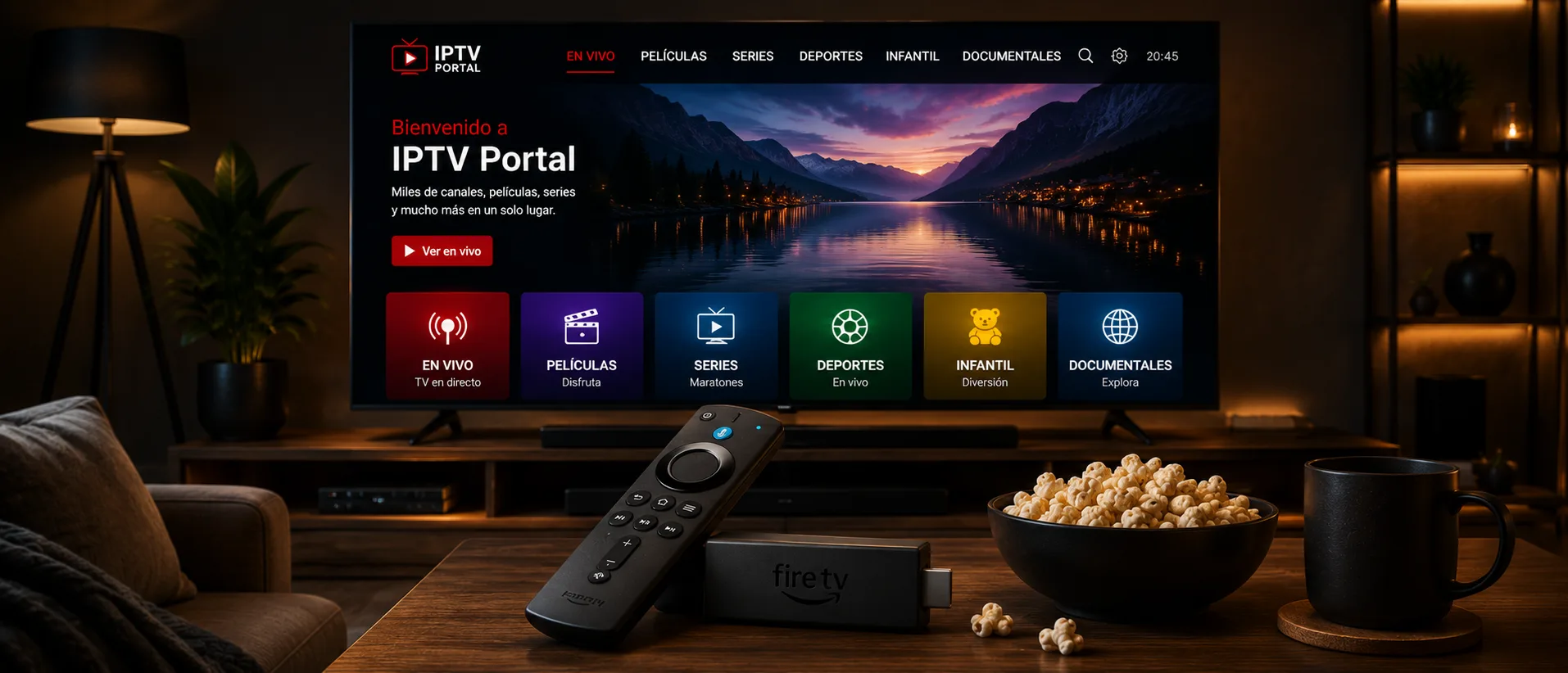
You'll need your Fire TV Stick connected to Wi-Fi and signed into an Amazon account, plus the account credentials from your IPTV subscription. Firestick's on-screen keyboard is slow to navigate with the remote, so having your login details handy (or typing them on your phone via the Fire TV app) saves time.
If you're not yet sure your exact model is supported, check the list of supported Fire TV / Firestick devices before you start.
Installing a compatible app
Search the Amazon Appstore directly from your Fire TV home screen for a compatible IPTV player app. If the app you need isn't listed in the Appstore, some providers support sideloading via an app like Downloader — this involves enabling installation from unknown sources in Settings, and typing a URL provided by your service.
We don't recommend sideloading unless your provider specifically instructs you to, since it skips Amazon's app review process.
Entering your credentials
Most IPTV apps ask for either a playlist URL (M3U) or a username/password pair (Xtream Codes style), depending on how your subscription is set up. Enter exactly what you were given at checkout — extra spaces or a missing character in a URL is the most common cause of a blank channel list on first setup.
Common Firestick-specific issues
Older Fire TV Stick models (1st and 2nd generation) have limited RAM and can struggle with heavier IPTV apps — a Fire TV Stick 4K or newer generally performs noticeably better. If the app crashes on launch, try clearing its cache under Settings → Applications → Manage Installed Applications.