
How to Set Up IPTV Smarters Pro
A neutral, step-by-step overview of setting up the IPTV Smarters Pro app with the login details your own IPTV provider gives you, plus common setup problems.
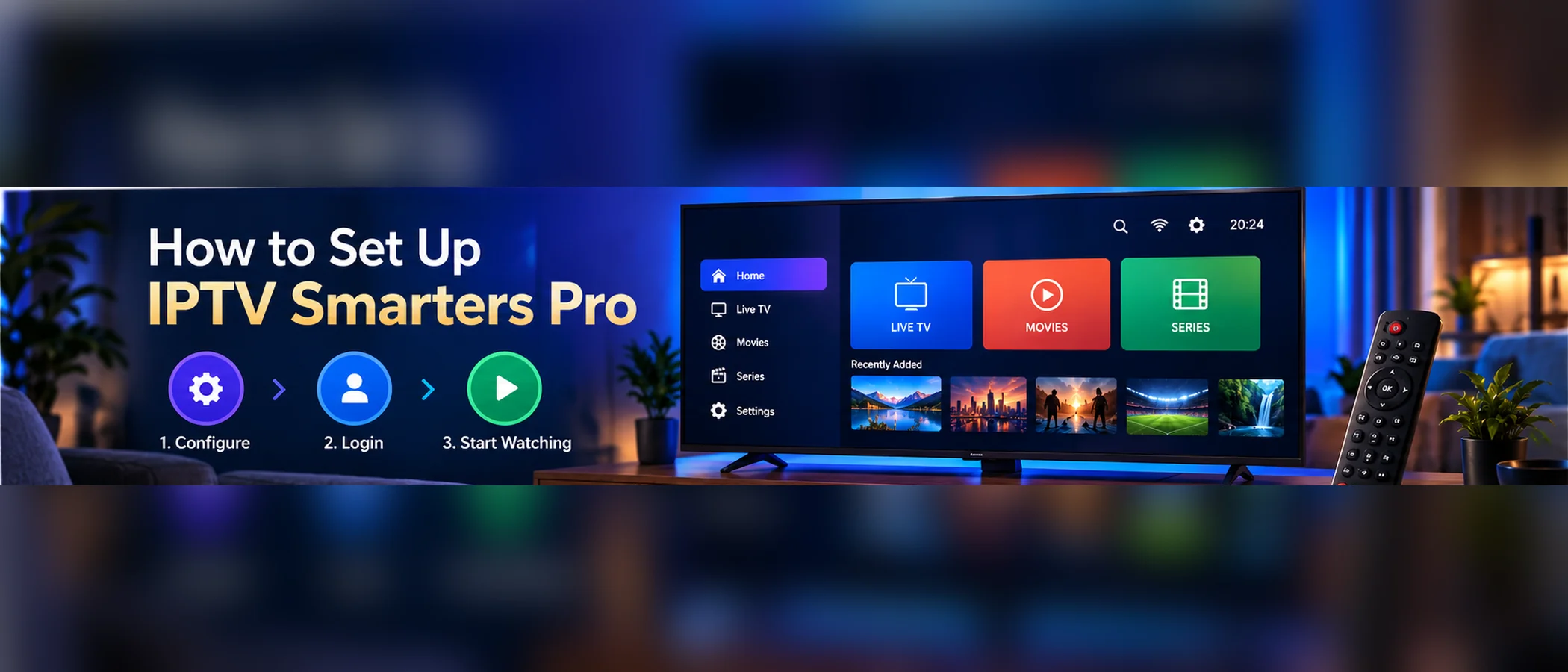
About IPTV Smarters Pro
IPTV Smarters Pro is a third-party media player app. It does not supply channels, films, or series on its own. It is a tool for opening content from a provider you already subscribe to.
IPTV Portal is not affiliated with, endorsed by, or partnered with IPTV Smarters Pro or its developer. This guide describes general setup steps only. Whether the app works with a particular provider depends on that provider's own instructions, so ask your provider if you are unsure.
Before You Start
Have your provider's login details ready before you open the app. Depending on how your subscription is set up, these may be a playlist link, or a username, password, and server address. Use the details your provider sent you. Never use login details that belong to someone else, and do not share yours.
Make sure your device is connected to the internet and that you have enough free storage for the app. A stable connection matters more than the app itself for smooth playback, so it is worth checking your network before you troubleshoot the app.
Installing the App
Install the app from your device's official app store if it is listed there. Check the developer name shown in the store before you install, and keep the app updated so you have the latest fixes.
Some providers suggest installing apps from outside the official store. Only do this if your provider's documentation tells you to, and understand the security trade-offs before you proceed.
Adding Your Provider Details
Open the app and look for an option to add a playlist or a provider account. The exact menu names change between app versions and devices, so follow the labels on your screen rather than a fixed sequence.
Choose the login type that matches your provider's instructions. Enter the details exactly as you received them. A missing character or an extra space is one of the most common reasons a login fails. Save the entry, then wait for the channel list to finish loading, which can take a short time for large lineups.
Checking the Channel List and Guide
Once the list loads, check that channels and categories appear. If your provider includes an electronic programme guide, it will show up in the app as a schedule for each channel. Not every lineup includes one, so an empty guide does not necessarily mean something is wrong with the app.
If the guide is unclear, our article on IPTV EPG explained describes what the guide is and how it loads.
Common Setup Problems
A login error usually means one of the details does not match what your provider issued. Re-enter them carefully, and check with your provider if the problem continues. Do not try to guess or substitute details from elsewhere.
If the app opens but nothing loads, check your internet connection and try again later, since the problem can sit on the provider side. If the app crashes, update it, restart the device, and clear the app's cache if your device allows it. The full list of fixes is in our IPTV troubleshooting guide.
Next Steps
For general setup steps across devices, see our installation guide. If you want to compare a different player, our walkthrough of Portal IPTV Player Pro covers that app's setup in the same practical way.
A working setup comes down to three things: the right app, the details your provider gave you, and a stable connection. Check each one in turn, and most setup problems become easy to identify.